

Fortuno Terminal is the trading platform you use with your Fortuno Markets account. This guide walks you through the main parts of the screen: your account details, the account menu, the chart, the symbol list, placing orders, and tracking your positions and history.
1. Account overview
The bar along the top of Fortuno Terminal shows the key figures for the trading account you are using. The numbers in the picture match the list below.
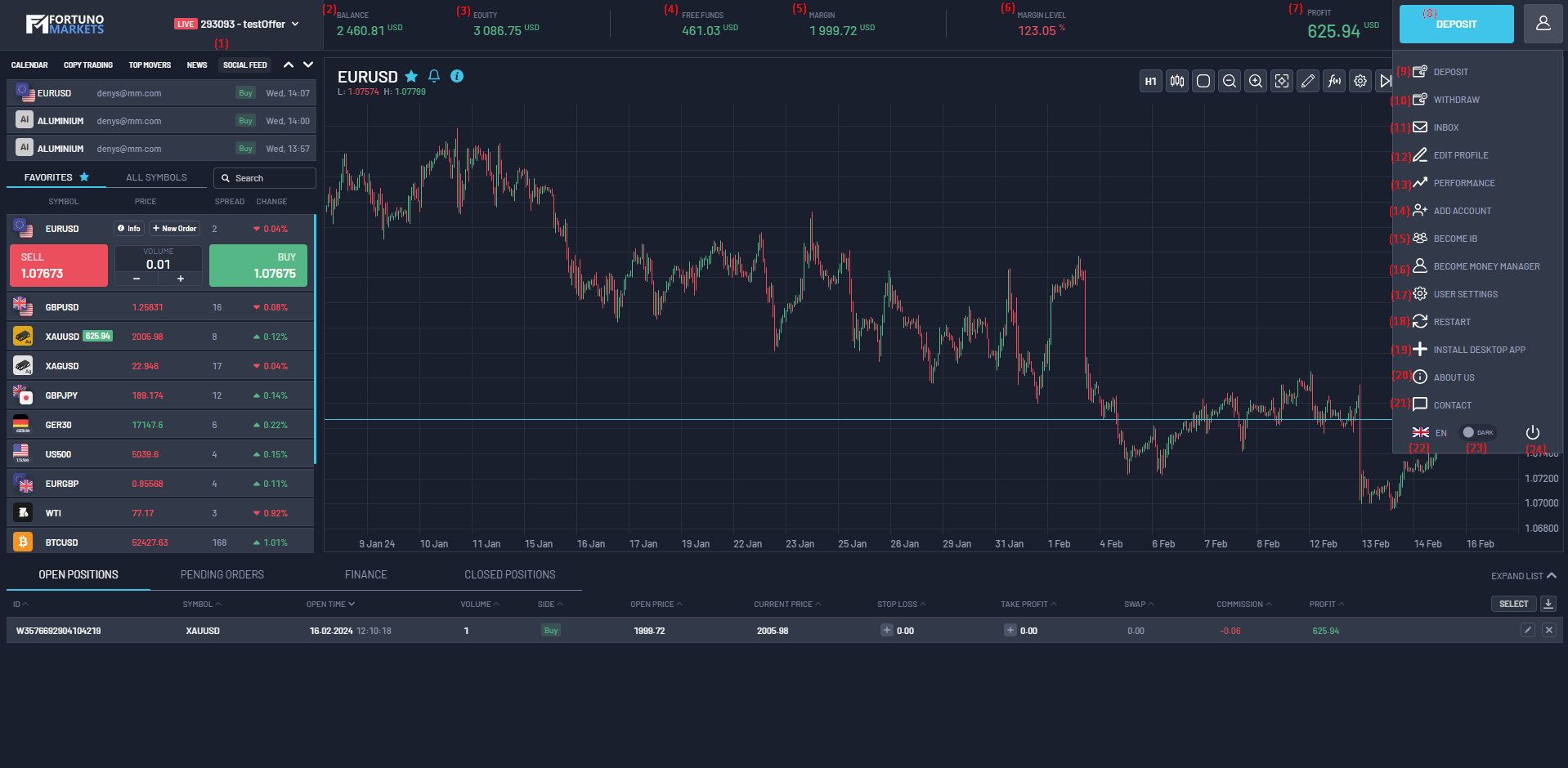
- (1) Trading account number: click it to see every trading account linked to your email address, switch between them, or open a new trading account.
- (2) Balance: the balance of your trading account.
- (3) Equity: your balance plus or minus the profit or loss on your open positions.
- (4) Free funds: the money available to open new positions.
- (5) Margin: the amount currently used to keep your positions open.
- (6) Margin level: your equity compared with your used margin, shown as a percentage.
- (7) Profit: the profit or loss on your open positions.
- (8) Deposit: add funds to your account.
2. Account menu
Click the profile button next to Deposit to open the account menu. It contains the following items:
- (9) Deposit: add funds to your account.
- (10) Withdraw: request a withdrawal.
- (11) Inbox: all the messages you have received.
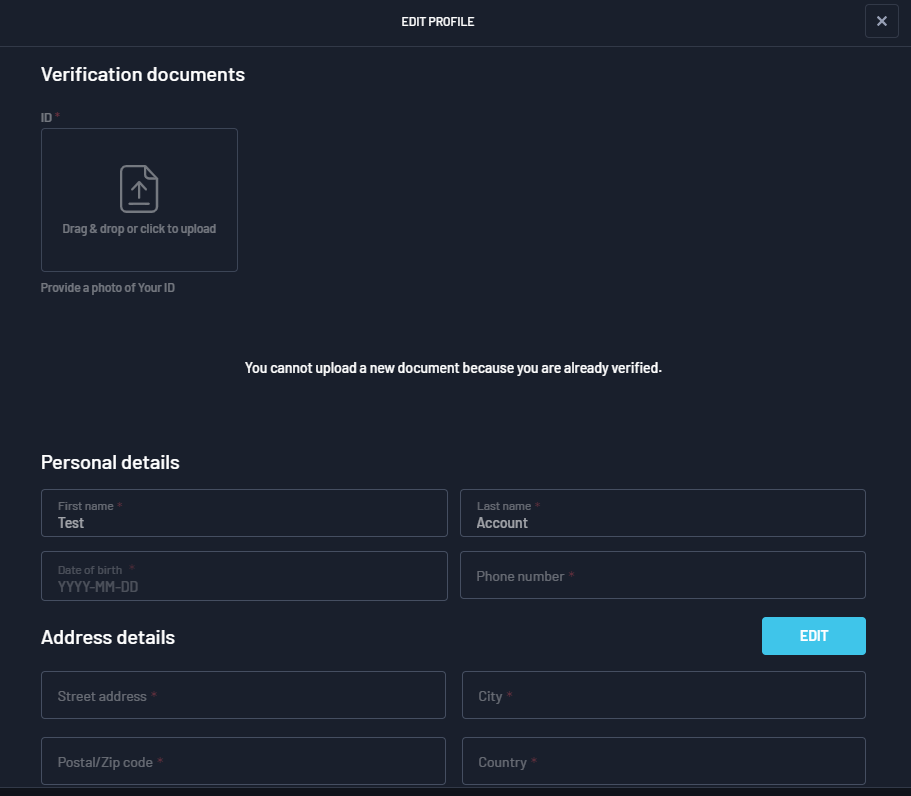
- (12) Edit Profile: update your account information, including your verification documents.
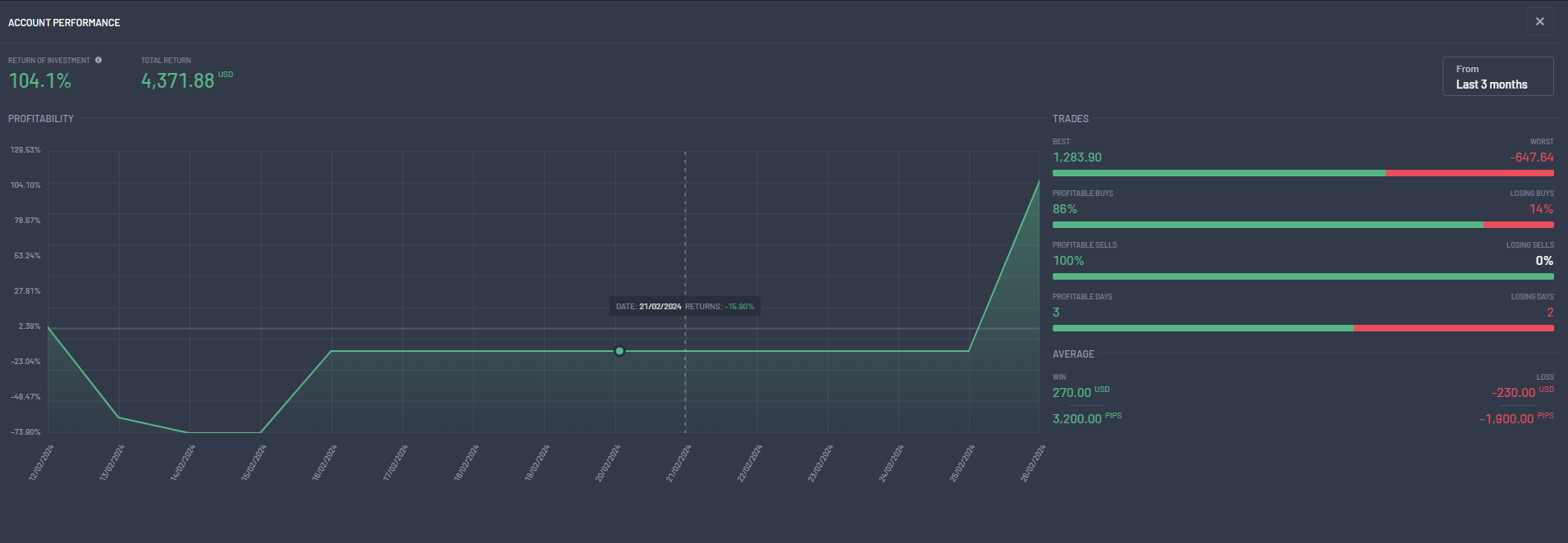
- (13) Performance: check how your trading has performed, including your return on investment.
- (14) Add Account: request a new trading account.
- (15) Become IB: apply to become an Introducing Broker (partner).
- (16) Become Money Manager: apply to let other traders copy your trades. See our Copy Trading guide for the steps.
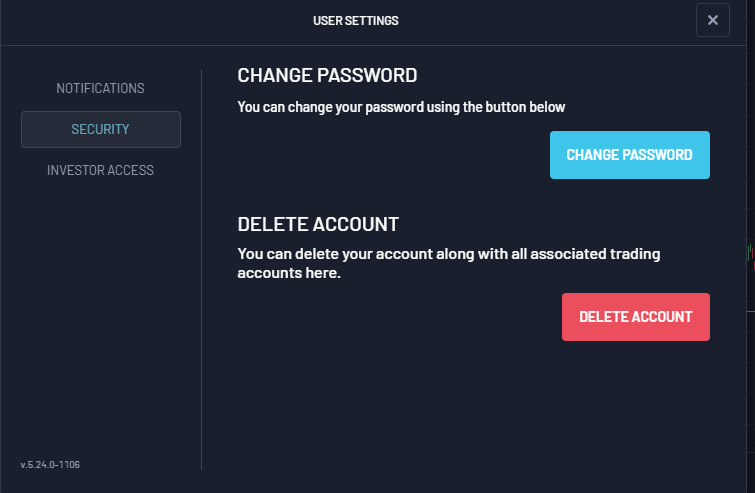
- (17) User Settings: manage your account settings:
- Notifications: choose which notifications you receive.
- Security: change your password or delete your account.
- Investor Access: create a view-only login, so someone can see your account without being able to trade.
- (18) Restart: reload the platform.
- (19) Install Desktop App: watch a short video on how to install the desktop version of Fortuno Terminal.
- (20) About Us: information about Fortuno Markets.
- (21) Contact: how to get in touch with us.
- (22) Language: change the platform language.
- (23) Dark mode / Light mode: switch the colour theme.
- (24) Log out: sign out of Fortuno Terminal.
3. Chart
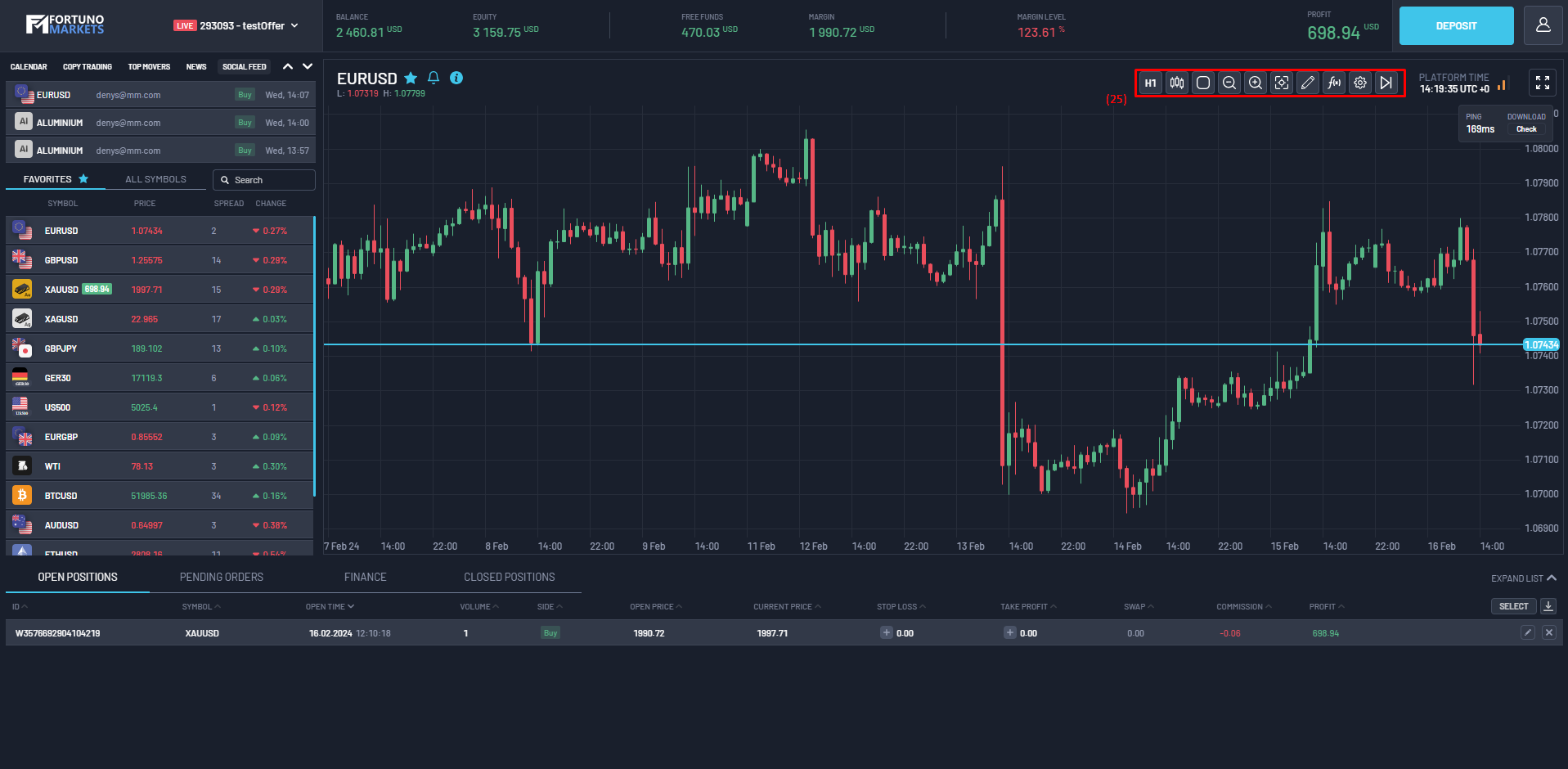
The chart takes up the middle of the screen. Use the toolbar above it (highlighted in red) to set up the chart the way you like.
4. Left panel
The panel on the left changes depending on the tab you choose at the top of it.
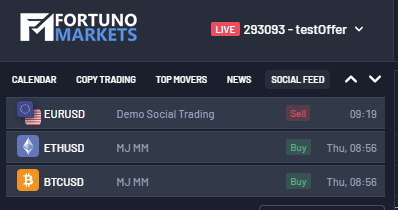
- Calendar: upcoming market events and key market information.
- Copy Trading: manage your copy trading. See our Copy Trading guide.
- Top Movers: the instruments that have moved the most today.
- News: the latest market news.
- Social Feed: recent activity from copy trading.
5. Symbol list
The symbol list shows the instruments you can trade.
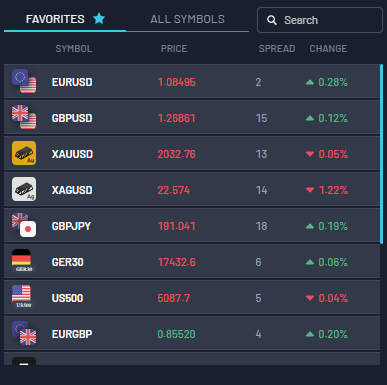
- Favorites: the instruments you have starred, for quick access.
- All Symbols: every instrument available on Fortuno Terminal.
- Search: find an instrument by name.
Trading from the symbol list
Click an instrument to show its trading options.
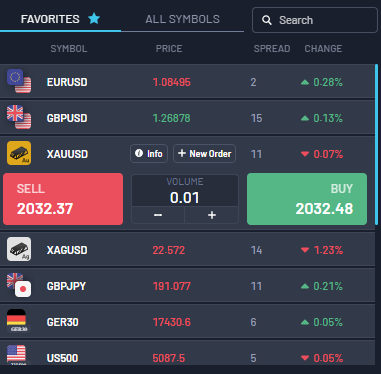
- Sell / Buy: open a position straight away at the current price.
- Volume: set the size of the position.
- New Order: open the full order window (see Placing orders).
- Info: see key information about the instrument.
Instrument information
Click Info to open the instrument’s details. The Details tab shows:
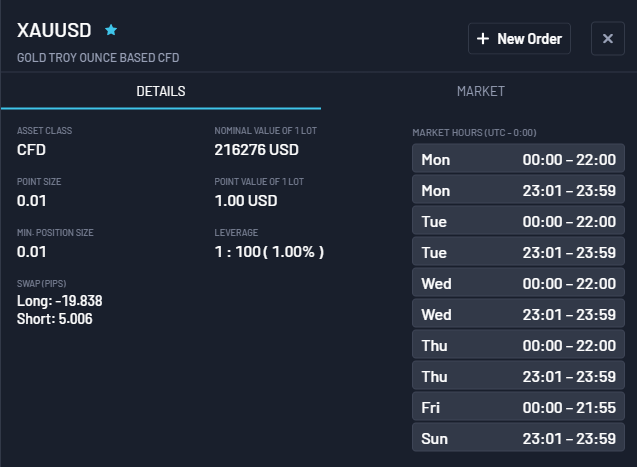
- Asset class
- Nominal value of 1 lot
- Point size
- Point value of 1 lot
- Minimum position size
- Leverage
- Swap
- Market hours
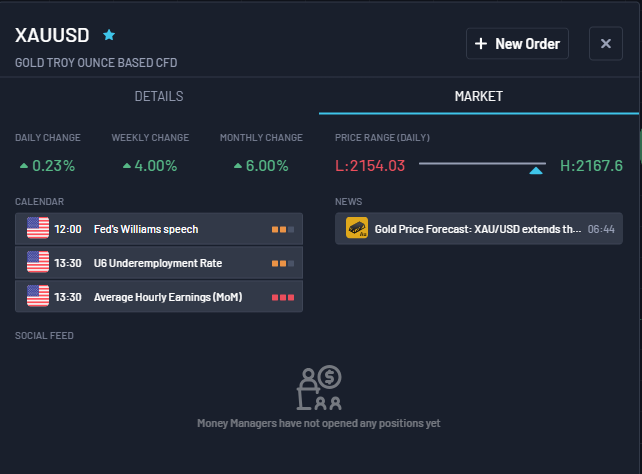
The Market tab shows important market information about the instrument.
6. Placing orders
Market order
In the New Order window, the Market tab opens a position straight away at the current market price.
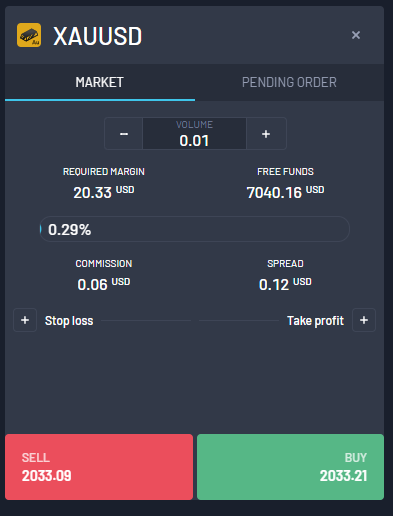
- Required margin: the amount needed to open the position.
- Free funds: the money you have available.
- Stop Loss / Take Profit: switch these on and set the prices at which the position closes automatically, to limit a loss or lock in a profit.
- Commission: the commission for opening the position.
- Spread: the difference between the buy (ask) and sell (bid) prices.
Pending order
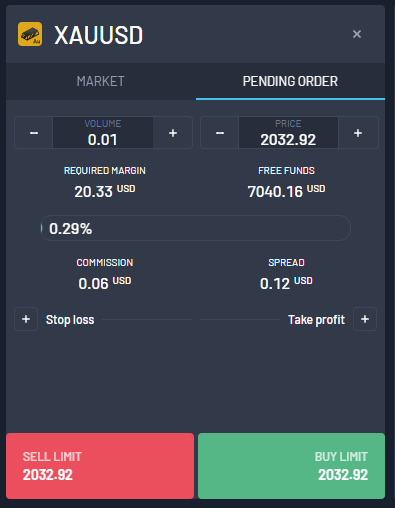
The Pending Order tab lets you place an order that opens later, when the price reaches the level you choose. It shows the same information as a market order: required margin, free funds, Stop Loss and Take Profit, commission and spread.
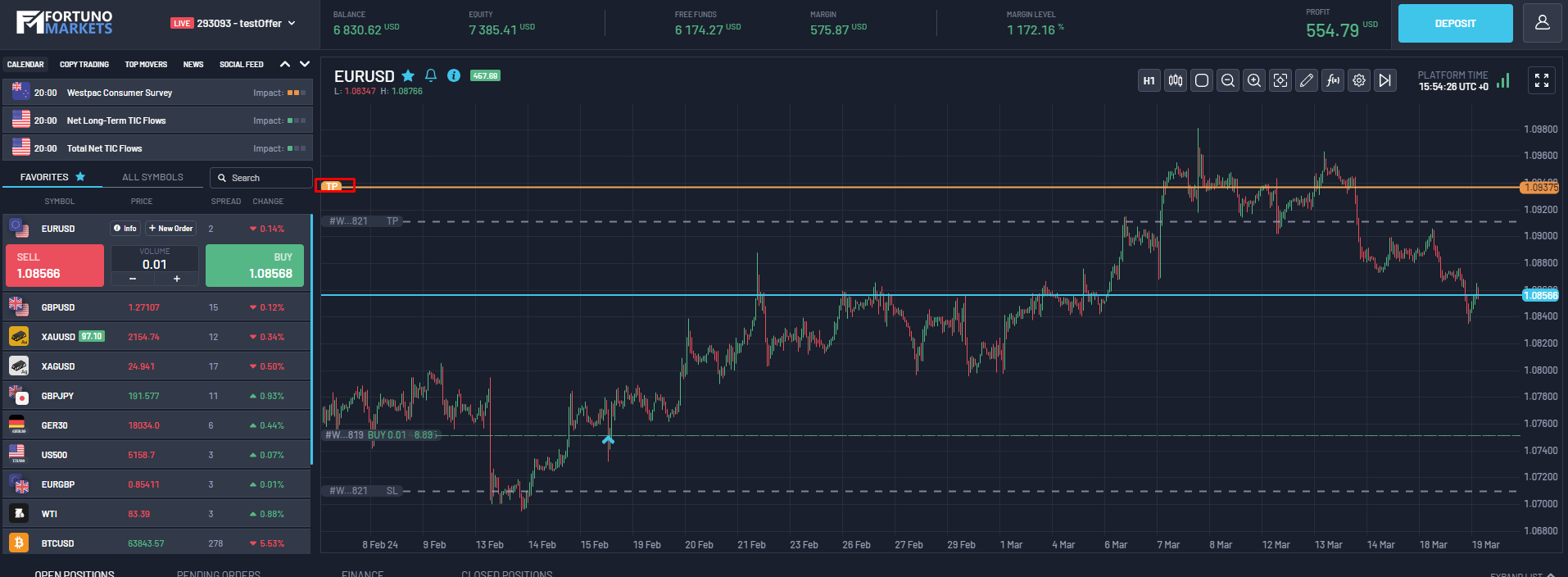
Changing Stop Loss and Take Profit on the chart
Once a position has a Stop Loss or Take Profit, its level appears as a line on the chart. Drag the line to a new price to change it.
7. Positions and history
The panel at the bottom of the screen has four tabs.
Open Positions

- ID: the position’s ID.
- Symbol: the instrument the position was opened on.
- Open time: when the position was opened.
- Volume: the size of the position, shown in lots by default.
- Side: whether the position is a buy or a sell.
- Open price: the price the position was opened at.
- Current price: the instrument’s current market price.
- Stop Loss / Take Profit: the levels set for the position.
- Swap: the cost or credit for holding the position overnight.
- Commission: the commission paid to open the position.
- Profit: the profit or loss after swaps and commission.
- Select: choose several positions and close them at once.
- Close (×): close a single position.
Pending Orders
Shows the details of your pending orders.

Finance
Shows every financial operation on your account, such as deposits and withdrawals. Use Filters to pick the type of operation and the date range.

Closed Positions
Shows the details of your closed positions.

- Reason: why the position was closed, for example by you or by a Stop Loss.
- Share Trade: share the trade with others.
Trading carries risk. Make sure you understand how margin, leverage, Stop Loss and Take Profit work before you open a position.